Business
Virtual airlines
A virtual airline is a player company that opened its doors to other pilots. Members fly its aircraft and its cargo, take a cut of what they earn, and can get a share of the weekly profit, without giving up their own company.
This page explains the rules. Cut ranges aside, prices, pay and fees are left out on purpose: the economy is still being tuned during the beta, and the app always shows the current numbers.
What a virtual airline is
Every account already has its own company: your Wallet, your Hangar and your progress. A virtual airline is one of those companies after its owner publishes it. Joining one does not merge anything: you keep your company and fly for the airline on the side.
| Your company | The airline you joined | |
|---|---|---|
| Money | The Wallet at the top of the app. Your cuts and profit share land here. | The Company wallet in Crew → Ledger, shared by everyone. |
| Aircraft | The ones you bought or leased. | The airline's fleet, in Crew → Hangar. |
| Progress | Always on your company: Cargo Ops, Class Ops, the clean flights that unlock leasing, pilot hours and rank, even when you fly the airline's aircraft. | |
The three pages live under Community in the sidebar:
- Virtual airlines: the directory of published airlines, to browse and join.
- Crew: the desk of your airline, the one you published or the one you joined. Its title is the airline's name. Tabs: Hauls, Ports, Hangar, Roster, Ledger, Logbook and Config.
- Ranking: airlines and pilots.
You can be in one airline at a time, as owner or as member. To join another, leave the current one first (or unlist it, if it is yours).
Found one
Founding is publishing your own company, so it keeps the same wallet and fleet. Anything the company already has (aircraft, Base, warehouses) becomes the airline's.
- Open Company in the sidebar and find the Open for pilots card.
- Check the Public name (it is your company name; change it with Rename in Identity), set the Home hub ICAO and, if you like, an Airline ICAO code.
- Click Publish. The card becomes In the directory, and the airline shows in Virtual airlines with hiring open.
- Open Crew → Config. Next steps lists what is still missing: an invite code, a second pilot on the roster, Line crew.
In Config, the owner sets:
- People: Open recruiting (whether the directory takes join requests) and Create invite for a private code. The code does not expire; Renew invite replaces it, and the old one stops working.
- Pilot cuts: the Market hire cut and the Airline desk cut. See Pilot cuts.
- Profit share: the weekly percent for members. See Profit share.
- Line crew: staff who reposition the airline's empty aircraft. See Shared aircraft.
- Auto-haul desk: lets the desk post company hauls by itself, with a Wallet floor it won't spend below.
Unlist from Airlines, in the Danger zone, takes the airline out of the directory and drops the other pilots from the roster. Your company, wallet and fleet stay, and you can publish again later.
Join one
Open Virtual airlines. Each card shows the airline's home hub and Pilots (with seats open), Fleet, Quality, Perks, Hiring and Cuts. Search by name or home ICAO. Click a card, or View, for the airline's profile: its HQ, Port Terminals and warehouses on a map.
There are two ways in:
- Request: when Hiring is Open, click Request join. The card shows Request pending until the owner or a dispatcher accepts or rejects it.
- Invite code: type a code like VA-XXXXXXXX in the box at the top and click Join code. A code works even when hiring is closed.
The first time you open Crew as a member, a short card walks through wallets, cuts, progression and jobs.
To leave, use Leave airline on the airline's profile or at the bottom of Crew → Config. You switch back to your own company with your wallet and fleet; the company money and hangar stay with the airline.
Roles
Every member is an owner, a dispatcher or a pilot. New members join as pilots. In Crew → Roster the owner can Make dispatcher, Make pilot or Kick. The roster also shows who is online, in flight and where.
| Role | Can do |
|---|---|
| Pilot | Fly the airline's aircraft and hauls, see the hangar, Ledger, Logbook and roster, hold cargo from the Scout. |
| Dispatcher | All of the above, plus accept or reject join requests, create invites and run the company's port desk (stock buys, ground staff). |
| Owner | Everything: publish, rename, cuts, profit share, recruiting, roles, Line crew, maintenance and overhauls, credit, buying warehouses and claiming a Port Terminal, selling or leasing aircraft, unlisting. |
Shared aircraft
Crew → Hangar is the airline's fleet. As a member you fly it like your own: the aircraft pickers on Freights, Charter and Ports list each tail as Airline or Yours. Only parked aircraft can be picked.
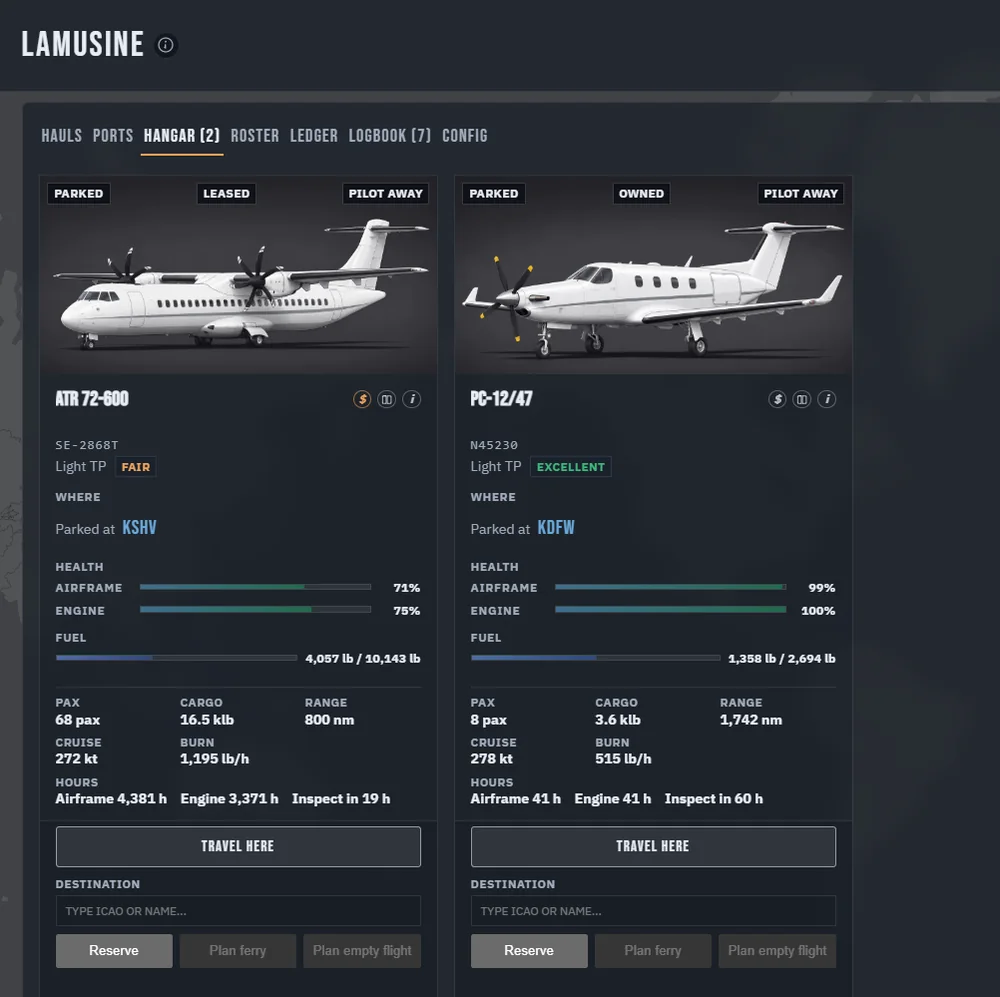
- Your gates still apply. You can only fly a class or a commodity your own company has unlocked, even if the airline has it open. Hours and clean flights count for you.
- Get to the aircraft with Travel here, or move it with Plan ferry. Reserve holds a tail for you for a while.
- Several members can fly at once, each with their own flight.
- Maintenance is the owner's: inspect, repair and overhaul are paid from the company wallet, and only the owner has those buttons. Selling and leasing out are also owner-only.
- Empty ferries use the Line crew allowance: a set number of free hops a week, which grows with the Line crew tier and the parked fleet. In the ferry window you choose Allowance or Pay. With no Line crew, or once the week's allowance is used, a member's empty ferries are paid from that member's own wallet.
Company hauls and routes
Besides the open market, an airline has its own work: moving the company's cargo between its warehouses and selling it where it is wanted. That is Crew → Hauls, the tab the desk opens on.
- The network map shows the airline's HQ, Port Terminals and warehouses.
- Open desk work lists holds: company cargo set aside for one flight, such as an Internal Haul from one warehouse to another, a Demand order or a Wide haul. Each shows who posted it and when it expires.
- Pick a parked company aircraft and click Accept, or Prepare to set the load in the Manifest first (or when the aircraft still has to ferry to the origin). If the hold is bigger than the aircraft, you take part and the rest stays on the desk. Cancel releases a hold.
- Active lists the company flights in progress. Click one to draw it on the map with the pilot's live position.
Crew → Ports is the company's port desk (Port Terminal, warehouses, Scout, Demand). The Ports page in the sidebar stays your own. A new airline starts with shared aircraft and the market; warehouses and a Port Terminal are a later build, and Path to Port Terminal in Config shows the way.
Pilot cuts: who earns what
When you fly for the airline, the pay goes to the company and you get a cut of the route net (pay minus the Jet-A for that flight) in your own Wallet. The rest stays with the airline. The owner sets two cuts in Config; members see them there and on the directory card (Cuts).
| Work | The airline pays | You earn |
|---|---|---|
| Freights or Charter on an airline aircraft | Jet-A | The Market hire cut (10–50%) of the route net |
| Demand or Wide haul from company stock | Jet-A | The Airline desk cut (40–60%) of the route net |
| Internal Haul (warehouse to warehouse) | Jet-A | The haul fee |
| Empty ferry | Line crew allowance | Nothing (paid by you beyond the allowance) |
| Your own aircraft, your own company | — | All of it: you pay the costs too |
- The owner flying the airline's aircraft gets no cut: it is their company.
- Your travel (the Pilot · Move chip) is always paid from your own wallet.
- The same table is in the app: the ? next to Company wallet in the Ledger.
The Ledger and the company wallet
The Wallet at the top of the app is always your own company. The airline's money is the Company wallet in Crew → Ledger. It is the owner's company wallet: members don't have a separate one in the airline. Every role can see the Ledger.
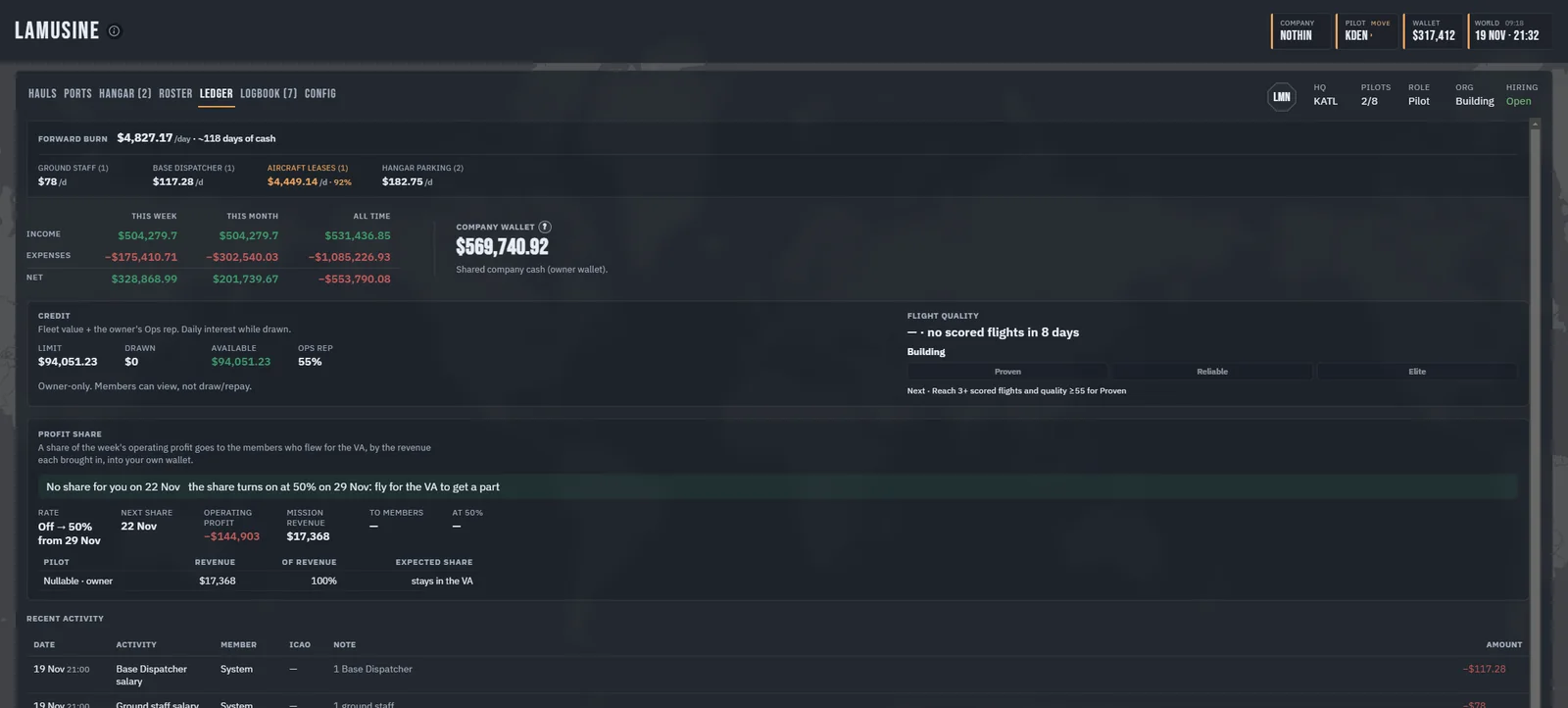
- Forward burn: what the airline spends a day on staff, leases and parking, and how long its cash lasts.
- Income, expenses and net for this week, this month and all time.
- Credit: only the owner can draw or repay; members can see it.
- Flight quality: the members' flight scores and on-time deliveries over about a week. It moves the airline up through Building, Proven, Reliable and Elite, and the perks of each tier cut maintenance and overflow ferry costs. The next step is shown under the tiers.
- Profit share: see below.
- Recent activity: every entry, with the member who caused it.
Profit share
On top of the cuts, the owner can share part of the airline's profit with the members who flew for it. It is off until the owner sets a percent in Config.
- When: every Sunday, for the operating profit since the last share.
- What counts: operating profit only. Buying or selling aircraft, bases, warehouses and stakes, and credit, are left out.
- Who gets what: the share is split by the mission revenue each member brought in that week. The owner's flights count in the split, but the owner's part stays in the airline. Members who left before Sunday get nothing.
- When nothing is shared: on a loss, or when the airline has no cash above zero.
- Changes to the percent apply from the next week, and members see the new rate and its date in advance.
- The money goes to each member's own Wallet.
The Profit share card in the Ledger shows the Rate, the Next share, the Operating profit so far, the Mission revenue, what goes To members and each pilot's expected share. A member sees their own part at the top.
Ranking and logbooks
- Ranking lists airlines and pilots for 7 days or all time, by distance, flights or pay. The airline board counts every flight settled for a published airline; flights for an unpublished company don't count there.
- Your own Logbook marks the flights you flew for the airline, and the pay shown is your cut. Crew → Logbook shows every member's flights with the company's full pay.
Last updated: 22 November 2026 · written for app v0.3.1244