Getting started
Connect to MSFS 2024
There is nothing to set up. Open Airframe and MSFS 2024 in any order, load an aircraft, and the app finds the sim by itself.
How the connection works
Airframe ships with a small helper program, the SimBridge Host. The app starts it in the background when it opens and restarts it if it stops. The Host talks to MSFS through SimConnect (the sim's official interface) and to the app through a local named pipe. It does not need .NET or anything else installed, and you never start it by hand.
- Order doesn't matter. If MSFS isn't running yet, the app keeps trying every few seconds and connects once a flight is loaded.
- Load an aircraft. SimConnect answers only once you are in a flight, not in the MSFS main menu. Cold and dark at a gate is fine.
- If MSFS closes, the app notices, waits, and reconnects when you load a new flight.
- Internet: the app opens without a connection, but signing in and playing go through the World server, so you need to be online to play.
Status words
The status strip at the bottom of the app shows the connection state:
| Status | What it means |
|---|---|
WAITING… | Nothing connected yet. Start MSFS and load an aircraft. |
CONNECTING… | The app is reaching for the sim and retrying by itself. |
SIMBRIDGE | The Host is connected to the sim, but no flight is being watched. |
SIMBRIDGE · PLANNING | While you plan, Preflight uses the sim connection; the flight Watch starts again after Preflight. |
MSFS | Connected and watching your flight. |
MSFS · PAUSED, · MENU, · SLEW | The sim is paused, in its menu, or in slew mode. |
INJECTING… | Airframe is loading fuel and payload into the aircraft. |
RECONNECTING… | The connection dropped during a flight. The app retries; your flight stays open. |
SETTLING… | The flight is being settled after you parked. |
Error text appears in red next to the status, for example:
MSFS not running.The Host is up, but MSFS isn't running or isn't answering.MSFS not ready — load an aircraft.MSFS is open, but no flight is loaded yet.Simulator closed — retry in N sorPipe closed — retry in N s: the connection dropped; it retries on its own.

Troubleshooting
It stays on WAITING… or says MSFS not running
- Make sure you are in a flight in MSFS 2024 (not the main menu, not MSFS 2020).
- Give it up to half a minute: the app retries every few seconds.
- Still nothing? Close Airframe completely and open it again. That restarts the Host.
- If Airframe says it is already running when you open it, a previous launch did not exit. Open Task Manager, end Airframe Career and SimBridgeHost, and open it again.
Preflight says the sim is offline or has no aircraft
- SimBridge is offline…: the app has no sim connection yet. Wait for the status to
leave
WAITING…(see above), then load the aircraft at the origin. - SimBridge is up, but no aircraft title yet: load the aircraft at the departure gate. Cold and dark is fine.
- MSFS reports airborne: Preflight only runs on the ground. Start the flight on the ground at the origin.
NOT AT ORIGIN
The aircraft in the sim must be on the ground near the departure airport of the flight. The message tells you how far away it is (Aircraft is X nm from ICAO). Load the flight in MSFS at the right airport; the Watch will not start the flight from elsewhere.
The aircraft is not recognized
If inject says No writable aircraft profile…, Airframe has no profile for the aircraft title MSFS reports. Check it on Airframes with the button that identifies the aircraft in the sim: it reads the MSFS title (not the paint) and tells you whether it is recognized and which market type it matches. Use a supported aircraft for the flight, and report the one that failed on Discord #homologation.
Fuel or payload don't match (Loaded vs Due fails)
- Keep the aircraft's EFB in pounds (LB), not kg. Metric mode often writes the wrong mass into the sim, and Loaded vs Due fails.
- Shut down engines before fuel inject: some aircraft only take fuel with the engines off.
- Aircraft must be on ground to inject fuel and payload: inject only on the ground.
- Inject failed: turn Airframe inject on again to retry (the switch reads Failed · retry).
More on loading in Your first flight.
The World server can't be reached
Messages like Can't reach the World server or The World server is restarting mean the app can't reach the online World. Check your internet connection and try again in a minute. If an update is required, the app says Update required: open Settings → Updates.
Updates
The app updates itself. During a flight it downloads the update but waits to install it until the flight has settled, so an update never interrupts a leg. When Windows asks about the update installer, choose More info → Run anyway.
Where the logs are
The app keeps its logs in your Windows user folder. Paste this path into the File Explorer address bar:
%APPDATA%\Airframe Career\logs
| File | What it has |
|---|---|
desktop.log | The app window, start-up and updates. |
career-api.log | The app's local service (planning, flights, World calls). |
simbridge-host.log | The SimBridge Host and its SimConnect connection. |
Flight watch detail is in %APPDATA%\Airframe Career\career\watch-debug.log.
You rarely need to open these yourself: Report a bug attaches the newest
part of them, and its form has an Open the logs folder link.
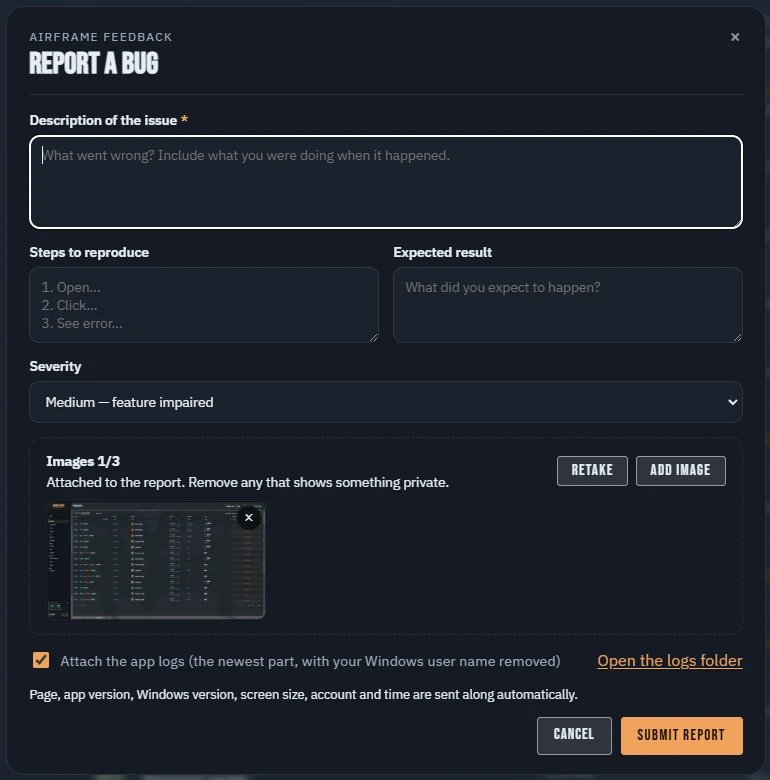
Report a bug
Click the bug icon at the bottom of the sidebar, next to the Settings gear (tooltip Report a bug). It is also in Settings → Updates, as Report a problem on the sign-in screen, and as Report this if the app shows Something went wrong.
- Describe the issue (at least 10 characters). Steps to reproduce and the expected result help a lot.
- Pick a Severity, from Low — cosmetic to Blocker — can't play.
- A screenshot of the Airframe window is attached; add up to 3 images. For an MSFS problem, add your own screenshot of the sim.
- Attach the app logs is ticked by default. It sends the newest part of the three logs, with your Windows user name removed.
- The page, app version, Windows version, screen size, your account and the time go along automatically.
Click Submit report; the app answers Thanks — report #N was sent. You can send up to 5 reports a day.
You can also post on Discord: fuel, payload and SimBrief problems go in #homologation.
Last updated: 20 November 2026 · written for app v0.3.1218